How to Prohibit IP Using Windows Firewall on Your Server?

1) We select Start » Administrative Tools » Windows Firewall With Advanced Security.
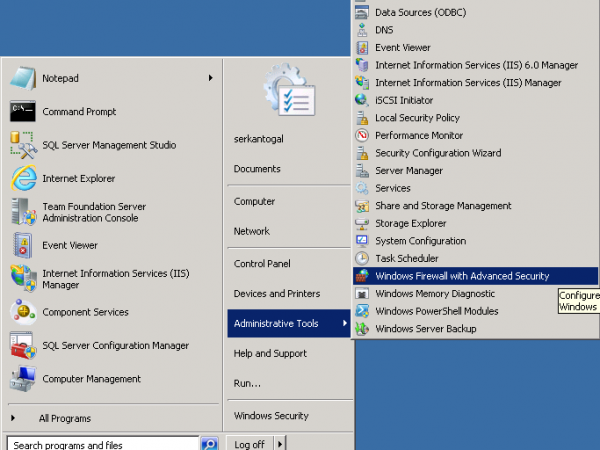
Windows Firewall Width Advanced Security
2) In the window that opens, we right-click on Inbound Rule and say New Rule.
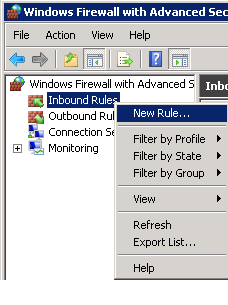
Inbound Rule
3) We choose the Custom option from Rule Type.
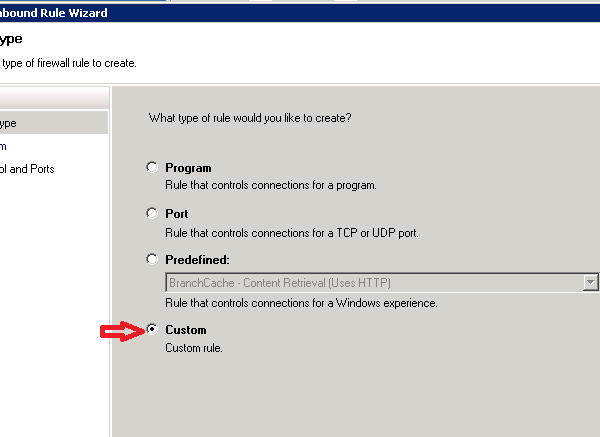
Rule Type
4) We click the Next button and proceed.
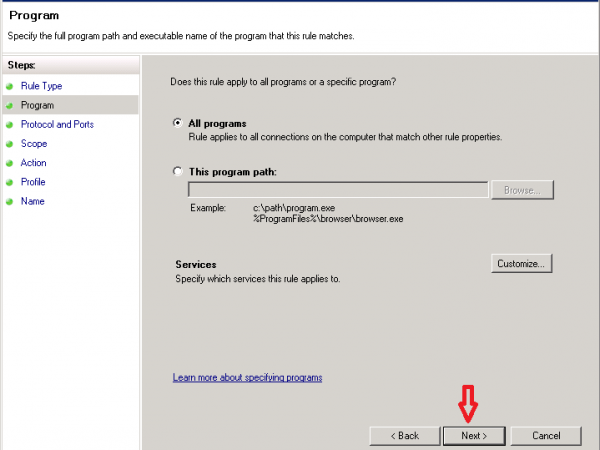
New Inbound Rule Wizard
5) We select the These IP addresses option and then click add.
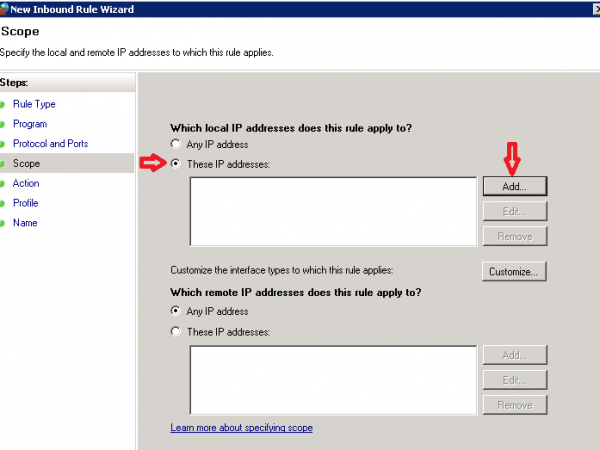
6) We select These IP address or subnet option and add the IP address we want to ban.
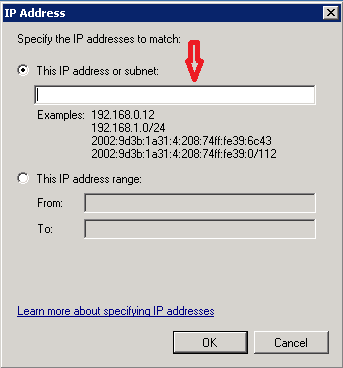
Ip_Address
7) After adding the IP addresses, the screen we see is as follows.We click next again.
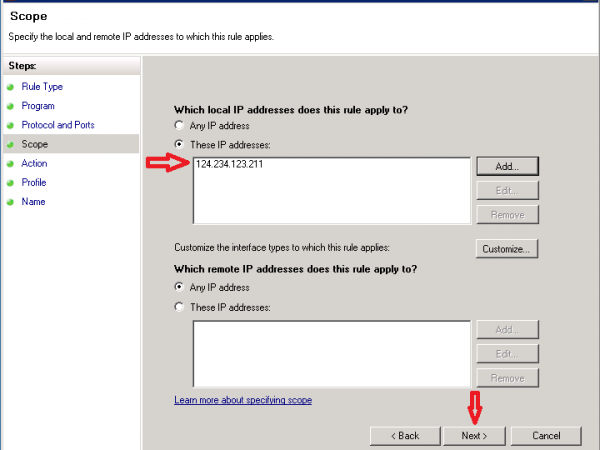
8) We select Block the connection the option and then click next.
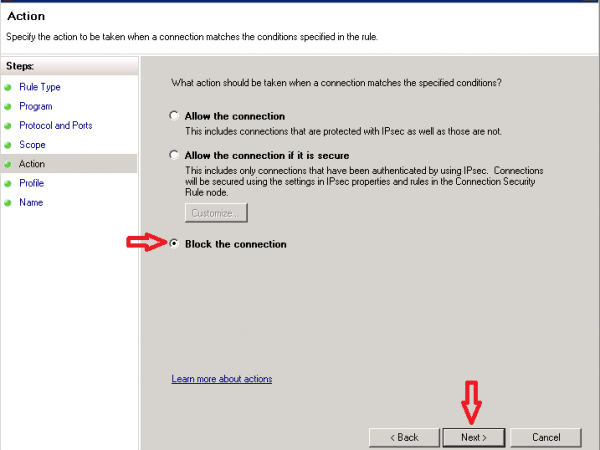
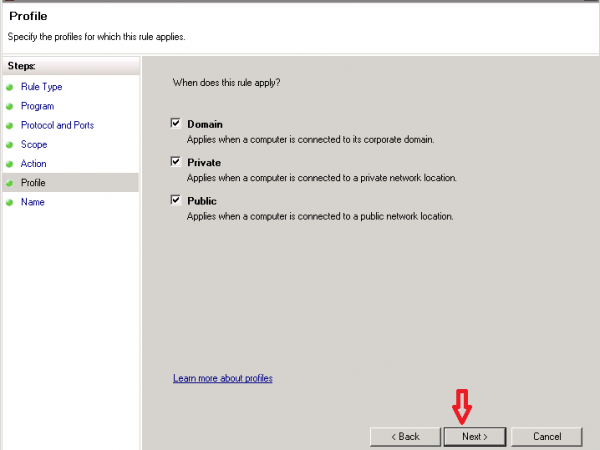
9) Here we select domain, private, public from the profile section and say Next and proceed.
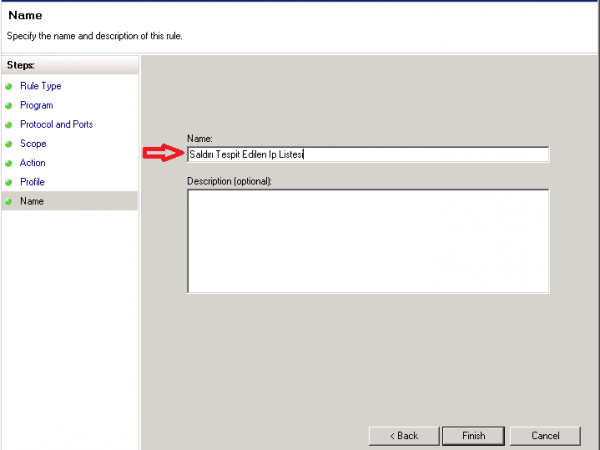
10) We choose a name and give it here. The reason we do this is to make it appear with this name in the list of blocked or accepted links.
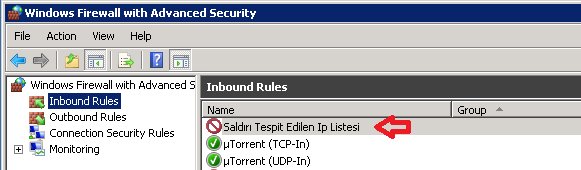
11) We check our list that came last. (In this list, the program whose connection is accepted or blocked gives us a list of values such as IP.)
I hope it was a useful article.