Mikrotik

How to Discover Neighbor Networks in Mikrotik devices?

Fadıl

In this article, we will see how other neighboring networks connected to MikroTik devices are discovered and how we can connect to the discovered devices.

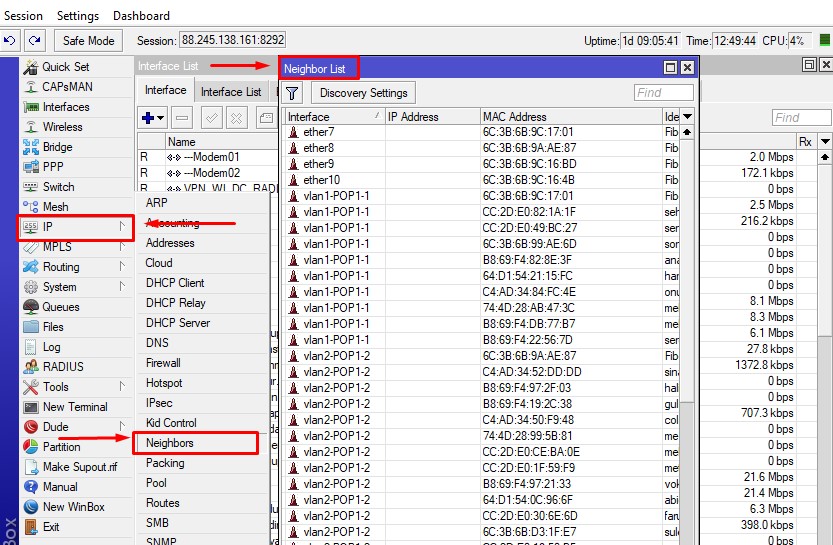
For this, we will see other devices in the same network connected to our Router in the IP> Neighbors> Neighbors List section from the menu on the left side of my MikroTik the device that we are connected to.
Neighbor_List

Neighbor_List

Here we will see how to discover the devices connected to our Mikrotik Router.

How to Install Mikrotik Hotspot?

Fadıl

Let’s see step by step how to install Hotspot Server in MikroTik routers.

1- Winbox application is downloaded on the login page of the MikroTik site.

<https://mikrotik.com/download>

Here, our computer operating system 64 bit or 32 bit whichever we are downloading.

2- Run the Winbox application and enter the IP / MAC information of the Mikrotik device and connect to the interface of the Mikrotik device. If you do not know the IP / MAC information, click the Browse button in the “Connect To:” field to access the desired information.

How to Monitor Internet Traffic Graph in Mikrotik Router?

Fadıl

Monitoring internet traffic on Mikrotik devices is sometimes vital for us.
It can be very important for us to see how much traffic passes through the ports of the router devices or how much traffic it receives.

Now we will see how to do this step by step.

The first step is to select which interface we want to add from Mikrotik Winbox Tools> Graphing> Interface Rules + New Interface Graphing Rule.

How to Set LigoWave NFT Series Devices in Access Point Mode

Fadıl

To create a simple Access Point (Auto WDS), follow these steps.

Note: NFT series devices require an external DHCP server as they operate in bridge mode by default.

Step 1 – Access Point WDS configuration;

If the device is not connected to a DHCP source, the default IP address is varsayılan “192.168.2.66”.

However, if it is running on a DHCP server, find out which IP address your device receives from your DHCP source and enter the interface settings.

How to Prevent MikroTik Brute Force and Port Scanner Attacks

How to Prevent MikroTik Brute Force and Port Scanner Attacks

Fadıl

By creating dynamic address lists for each relevant port and protocol; SSH, Telnet and Winbox ports to come with the Brute Force attacks on the Internet or local network will prevent future port scans.

In our code structure, Brute Force attacks are prevented by going through four different Stages with one Jump, rule, Level1, Level2, Level3 Tracking list step, and Black List rule, which controls the frequency of connection requests, for each of the SSH, telnet and Winbox rules separately.