This isn’t hard but seems to vex the newbies so here goes.
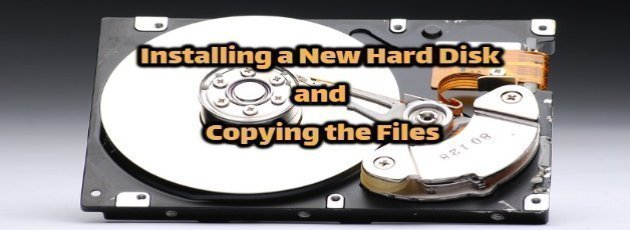
1. Do the physical install. If you don’t know how to do this then I suggest buying a Mac, or perhaps even an etch-e-sketch.
2. Boot the machine
3. Now, the hard part. The drive will be recognized by the OS as /dev/XdY, where X is either “h” (if the drive is IDE) or “s” (if the drive is SCSI), and Y is the letter of the alphabet that corresponds with the drive number.
(Obviously not “a”, if you already had a previous drive installed.)
So, if this is the third IDE drive, it will be /dev/hdc. If it’s your
fifth SCSI drive, it will be /dev/sde.
4. You want to run fdisk on that drive. Just plain
# fdisk
will automatically default to your first drive, so you want to use
# fdisk /dev/sde
(or whatever the proper device name is). The fdisk utility (used to partition and format “fixed disks” — hence the name) will start interactively. It will prompt you to use “m” for help; by all means, do so. The major commands you’ll want to use are:
l list known partition types
m print this menu
n add a new partition
p print the partition table
q quit without saving changes
v verify the partition table
w write table to disk and exit
If you make a mistake, you may also want:
d delete a partition
Use the “n” command to add partitions, sizing them however you want. For the most part, you will want to leave them on the default partition typesetting of 83, or Linux ext2 filesystem. When you have created all your desired partitions, it’s useful to use “v” to verify it. (There will be a little wasted space. If it’s not much, don’t worry about it; that’s normal.)
Don’t forget to write the partition table to disk! Then exit fdisk.
5. Now you need to mount the new partitions in your directory structure. As long as the partitions use the ext2 filesystem (the Linux standard), you can simply use the command:
# mount
The partitions have the same name as the drive itself, with a number after each one, matching their order on the drive. So the first
partition on /dev/hdb is /dev/hdb1, the next is /dev/hdb2, and so on. The fdisk utility will probably have given you the names of all those
partitions while you were creating them.
When you mount a partition onto a directory, any files that are already in that directory become inaccessible while the partition is mounted.
This can be a sneaky way to hide files if you know what you’re doing, but more likely, you’ll want to create one or more empty directories to
mount your new partition(s) on.
5. If you want to make your system automatically mount these new partitions at boot time (99% of the time, you do), you should edit the file/etc/fstab. Keep in mind to use tabs and not spaces. Linux does not like spaces. It will have a few lines something like this: