Publications
How to Send Mikrotik Backup e-mail?
To send an email with a regular backup of all system settings, three steps are needed. Firstly you must ensure you have set the outgoing email SMTP server settings in “tool email”, then create the script that generates the backup file itself, lastly is to create a schedule to run that backup script on a regular basis.
First of all, we need to set up email in MikroTik.
winbox the following code we need to write the new terminal.

PHP Function: Built-in Functions part 7
Here are yet more Built-in Functions,
Mail Function
If your server has access to sendmail or an SNMP gateway the mail() function sends mail to a specified recipient. Its syntax is
mail(“recipient”, “subject”, “message”, “mail headers”);
For example, the following code sends mail to [email protected] with the subject of “Great Site” and a message body saying “Techsoftcenter.com Is a cool site!”. The “From:” line is part of the additional mail headers.
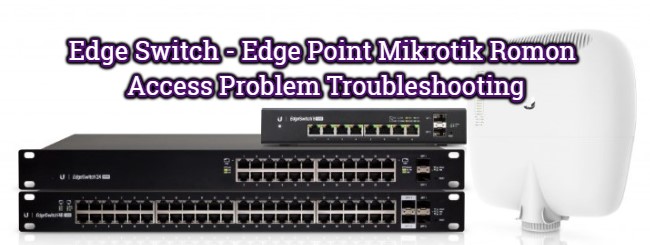
Edge Switch – Edge Point Mikrotik Romon Access Problem Troubleshooting
Hello there,
The UBNT EdgeSwitch and EdgePoint EP-S16 models were experiencing many revolutions in the past over MAC Discovery Access.
If you have a problem with the mac-discovery protocol (L2) between Romon Mikrotik uygulan s devices (L2), the following steps must be implemented by connecting to your Ubnt Edge Series Switches via SSH, TELNET or CONSOLE .;
1- enable // (type and press enter)
// depending on the software version you use, you may be asked for your login password again,
// enter your login password and press enter (default password: ubnt)
2- configure
// (type and press enter)
3- mac access-list extended global
// (type and press enter)
4- permit any any
// (type and press enter)
5- exit
// (type and press enter)
6- mac access-group global vlan 1
// in (type and enter)
// in the above step you grant 1 e RoMon packet pass, which is the default VLAN ID of your Switch,
// If you want to enable RoMon relay for different VLANs on the switch,
// run the command again by replacing 1 in the above code with the desired VLAN ID.
// Example command: mac access-group global vlan 200 in7- exit
// (type and press enter)
8- quit // (type and press enter)Would you like to save them now? (y / n)
// warning,// press the letter y to save your changes,
// your command line connection will be closed automatically after saving your changes.
NOTE: This application has been performed in the test environment and has not been tested on active working systems,
Do not forget to take the backup just in case before applying the rules!
Introduction to Java : Using the AWT To Build User Interfaces
Using the AWT To Build User Interfaces
Now we will make a big jump: we need to go from a simple application to a more serious one that will be representative of the kinds of applications you will build in real life. To do so, we will take advantage of the AWT class package that is distributed with the JDK.
As stated in the pre-requisite article “Web Programming 101,” one of the big benefits of using Java is the ability it gives you to create web-based graphical user interfaces (GUIs).
Introduction to Java : Constructing .Jar Files
Building a Jar File
After you have created your ZIP and CAB archives, you can then create a JAR (Java ARchive) file that will contain your compressed and archived Applet for use with users who have the most recent versions of Netscape Navigator and HotJava.
Building JAR files is very similar to building TAR files, something with which most UNIX developers are already familiar. Unfortunately, though, as with CABARC, there is only a command line interface, so you need to build your JAR files in the DOS shell using the JAR program provided with the JDK1.1.