Publications

How to Install Centos 7 Remote Desktop Connection
In this article, we will connect to our Centos server using the “Remote Desktop Connection” application on our computer without the help of any third-party program. We will learn how to do it by following the steps below.
1- The first step is to install Gnome Gui.
// yum group install "GNOME Desktop" "Graphical Administration Tools"
2- Let’s standardize our graphic display for the start.
// ln -sf /lib/systemd/system/runlevel5.target /etc/systemd/system/default.target
3- In this step, we reboot our server.

How to Prohibit IP Using Windows Firewall on Your Server?
1) We select Start » Administrative Tools » Windows Firewall With Advanced Security.
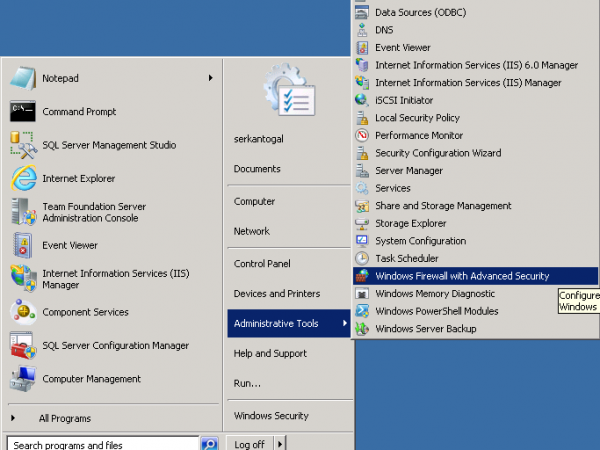
Windows Firewall Width Advanced Security
2) In the window that opens, we right-click on Inbound Rule and say New Rule.
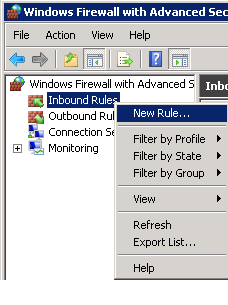
Inbound Rule
3) We choose the Custom option from Rule Type.
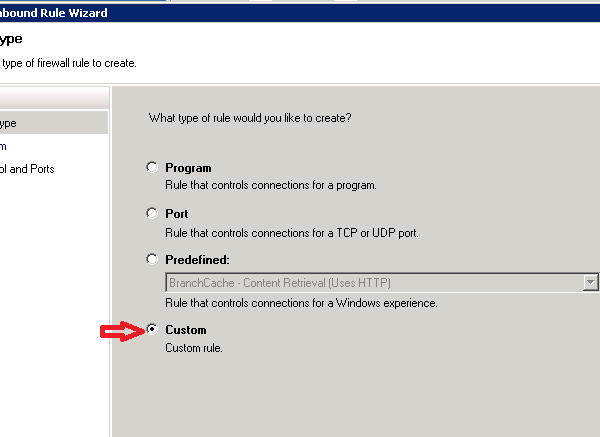
Rule Type
4) We click the Next button and proceed.
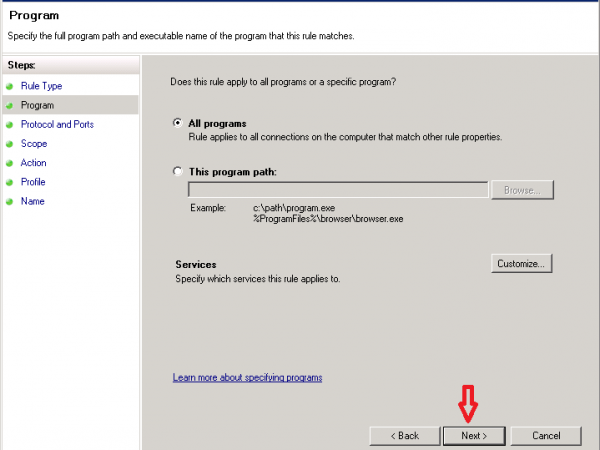
New Inbound Rule Wizard

How to Deal With Computer Crashes (Freezing)?
Dealing with Lockups
DO IT: As necessary.
If your computer “locks up” on you, you may want to take a look at your Task Manager. Windows Task Manager is a cool tool that lets you see all the programs you currently have open and determine if any of them are “Not Responding” – or causing your computer to lock up. If you have one or more programs that are Not Responding, you have the opportunity in Task Manager to end them safely.

How to Should a Strong Password Be?
Passwords
DO IT: Monthly, or as necessary.
This is pretty simple. Change your passwords and change ‘em often.
An easy way for you to protect your sensitive data and email is to change your passwords on a monthly basis or even more often depending on how frequently you use computers away from home.
If you log on to your email on any remote computer – such as at the library or in cyber cafes – then the possibility exists that the computer could have a key-stroking virus present.
How to Start and Stop Automatic Database in Linux Operating Systems?
Linux Operating Systems will automatically see how to start and stop the database. Together with the database, we will enable Listener Service and Enterprise Manager to automatically turn on and off.
When this operating system is installed, the shutdown or reboot command will shut down.
- On our system, we create “.bash_profile için for oracle user. In this article, I configured it according to the features of my system. You need to configure according to your own system.
--- With Oracle user, we will open the ".bash_profile" file in the Home directory as follows.
$ vim .bash_profile

-- After opening the required variables to the file, we save and exit the file.

# Oracle bash_profile Environment Settings

TMP=/tmp; export TMP
TMPDIR=$TMP; export TMPDIR

ORACLE_HOSTNAME=techsoftcenter-db.localdomain; export ORACLE_HOSTNAME
ORACLE_UNQNAME=orcl; export ORACLE_UNQNAME
ORACLE_BASE=/u01/app/oracle; export ORACLE_BASE
GRID_HOME=/u01/app/11.2.0.3/grid; export GRID_HOME
DB_HOME=$ORACLE_BASE/product/11.2.0.3/db; export DB_HOME
ORACLE_HOME=$DB_HOME; export ORACLE_HOME
ORACLE_SID=orcl; export ORACLE_SID
ORACLE_TERM=xterm; export ORACLE_TERM
BASE_PATH=/usr/sbin:$PATH; export BASE_PATH
PATH=$ORACLE_HOME/bin:$BASE_PATH; export PATH

LD_LIBRARY_PATH=$ORACLE_HOME/lib:/lib:/usr/lib; export LD_LIBRARY_PATH
CLASSPATH=$ORACLE_HOME/JRE:$ORACLE_HOME/jlib:$ORACLE_HOME/rdbms/jlib; export CLASSPATH

if [ $USER = "oracle" ]; then
  if [ $SHELL = "/bin/ksh" ]; then
    ulimit -p 16384
    ulimit -n 65536
  else
    ulimit -u 16384 -n 65536
  fi
fi

alias oraenv='. /home/oracle/.bash_profile'
- We are preparing our services that will start at the operating system.
-- we switch to privileged root user mode.

$ su - root
Password:
# vim /etc/init.d/dbora

-- Then we make the following changes in the file "/etc/init.d/dbora".

#!/bin/sh
# chkconfig: 345 99 10
# description: Oracle auto start-stop script.
#
# Set ORA_OWNER to the user id of the owner of the
# Oracle database software.

ORA_OWNER=oracle

case "$1" in
    'start')
        # Start the Oracle databases:
        # The following command assumes that the oracle login
        # will not prompt the user for any values
          su - $ORA_OWNER -c "/home/oracle/scripts/startup.sh >> /home/oracle/scripts/startup_shutdown.log 2>&1"
        touch /var/lock/subsys/dbora
        ;;
    'stop')
        # Stop the Oracle databases:
        # The following command assumes that the oracle login
        # will not prompt the user for any values
            su - $ORA_OWNER -c "/home/oracle/scripts/shutdown.sh >> /home/oracle/scripts/startup_shutdown.log 2>&1"
        rm -f /var/lock/subsys/dbora
        ;;
esac
- Set the security on the file.
# chmod 750 /etc/init.d/dbora
- We’re adding it to the chkconfig layer to work at a startup.
# chkconfig --add dbora
- Now we put the opening and closing scripts into the directory where we will create the dbora file as we said before. So we will write the commands that should work on opening and closing into these files. We will then make the necessary configurations for the “oracle” user to access our files.
# mkdir -p /home/oracle/scripts
# chown oracle.oinstall /home/oracle/scripts
- Now we can create our startup and shutdown scripts. Here you will need to set the DB parameter to your own system.
-- We create our Startup Script.

# vim /home/oracle/scripts/startup.sh

-- In the file we opened, we enter the following lines.

#!/bin/bash

export ORACLE_SID=orcl
ORAENV_ASK=NO
. oraenv
ORAENV_ASK=YES

# Start Listener
lsnrctl start

# Start Database
sqlplus / as sysdba << EOF
STARTUP;
EXIT;
EOF

# Start Enterprise Manager
emctl start dbconsole

-- We are creating our closing script.

# vim /home/oracle/scripts/shutdown.sh

-- In the file we opened, we enter the following lines.

#!/bin/bash

export ORACLE_SID=orcl
ORAENV_ASK=NO
. oraenv
ORAENV_ASK=YES

# Stop Enterprise Manager
emctl stop dbconsole

# Stop Listener
lsnrctl stop

# Stop Database
sqlplus / as sysdba << EOF
SHUTDOWN IMMEDIATE;
EXIT;
EOF
- After that, we will create the privileges and security settings of our scripts.
# chmod u+x /home/oracle/scripts/startup.sh /home/oracle/scripts/shutdown.sh
# chown oracle.oinstall /home/oracle/scripts/startup.sh /home/oracle/scripts/shutdown.sh
- That’s all we can do now we can test our services.
# service dbora start
# service dbora stop
This article was written by testing Oracle 11g R2 (11.2.0.3.0) on Oracle Enterprise Linux 6.4.