Publications
How to Discover Neighbor Networks in Mikrotik devices?
In this article, we will see how other neighboring networks connected to MikroTik devices are discovered and how we can connect to the discovered devices.
For this, we will see other devices in the same network connected to our Router in the IP> Neighbors> Neighbors List section from the menu on the left side of my MikroTik the device that we are connected to.
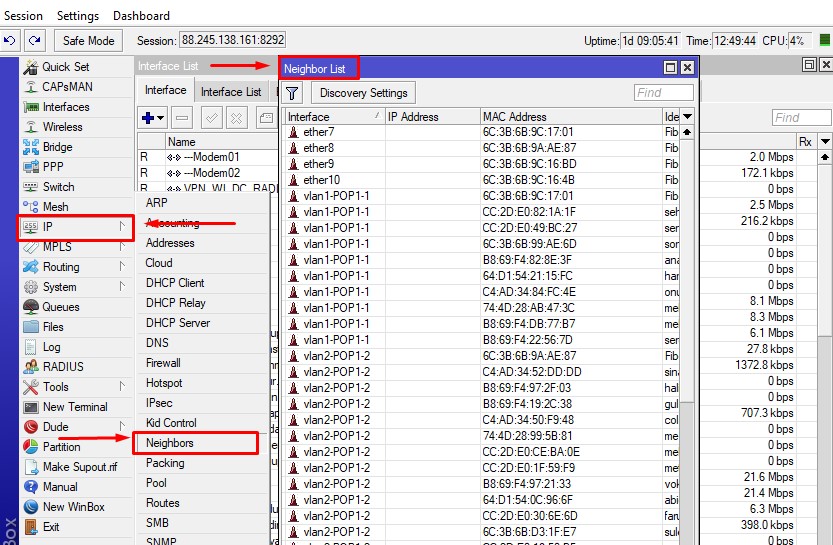
Neighbor_List
Here we will see how to discover the devices connected to our Mikrotik Router.

A Quick Introduction to XML Schemas
XML (“Extensible Markup Language“) is rapidly establishing itself as a useful tool for data exchange because it has the incredible potential to become a universal format for structuring information.
To use XML effectively in a community such as the Internet, there must be some constraints on the valid tags and tag sequences so that the data exchange can actually make sense to someone other than the creator. Still commonly used, DTDs (Document Type Definition) fulfilled this need. DTDs, however, have several disadvantages, such as:

Solving Centos 7 clone problem via Vmware
We often encounter Centos 7 cloning problem via Vmware, we can solve the problem by following the steps below to solve this.
Step1: First, you go to the ethernet configuration file.
nano /etc/sysconfig/network-scripts/ifcfg-ens160
Step2: Let’s add the line below. Replace the existing MAC with your desired MAC Address.
MACADDR=00:00:00:00:00:00
#UID Turns Off
Step3: Save the configuration file.
Step4: Restart the networking process.
/etc/init.d/network restart
I hope it was a useful article.
Ubuntu Google Chrome Setup and Solution to Logon Problem
Google Chrome Setup
Let’s do step by step how to install google chrome from the command line terminal in Ubuntu. As a shortcut, open the terminal window with Ctrl + Alt + T command. Next, let’s install the following code according to whether our operating system is 32-bit or 64-bit.
Code to be used for the 32-bit operating system;
wget https://dl.google.com/linux/direct/google-chrome-stable_current_i386.deb
Code to be used for those with operating system 64-bit;
I will install it because my operating system is 64-bit.
Ubuntu 18.04 PacketTracer7 Setup How to Fix libpng12.so error?
Often after installing PacketTracer 7, we get an error like the one below.
error while loading shared libraries: libpng12.so.0: cannot open shared object file: No such file or directory
Now let’s see how to fix this error.
After downloading the Packet Tracer, open the terminal in the same directory and extract it from the compressed tar.gz file.
sudo tar -zxvf packetracer7.tar.gz
Let’s enter the folder with the files we opened, if we are in the same directory, let’s run the install bash file without doing anything.